Setting Compare
Overview
Setting Compare helps you validate configuration differences between environments by comparing an exported settings file against the current live settings in Fig. This makes it easy to confirm that staging, production, or developer environments are aligned before a deployment or incident response.
Problem it solves
When settings drift between environments, it is hard to spot differences manually. Setting Compare provides a single view that highlights which settings match, which differ, and which exist only on one side. It also surfaces change metadata so you can quickly identify when and why a setting last changed.
How it works
- Export settings from the source environment using the Import/Export page. You can use either a full export or a value-only export.
- Open the Compare page and upload the export file.
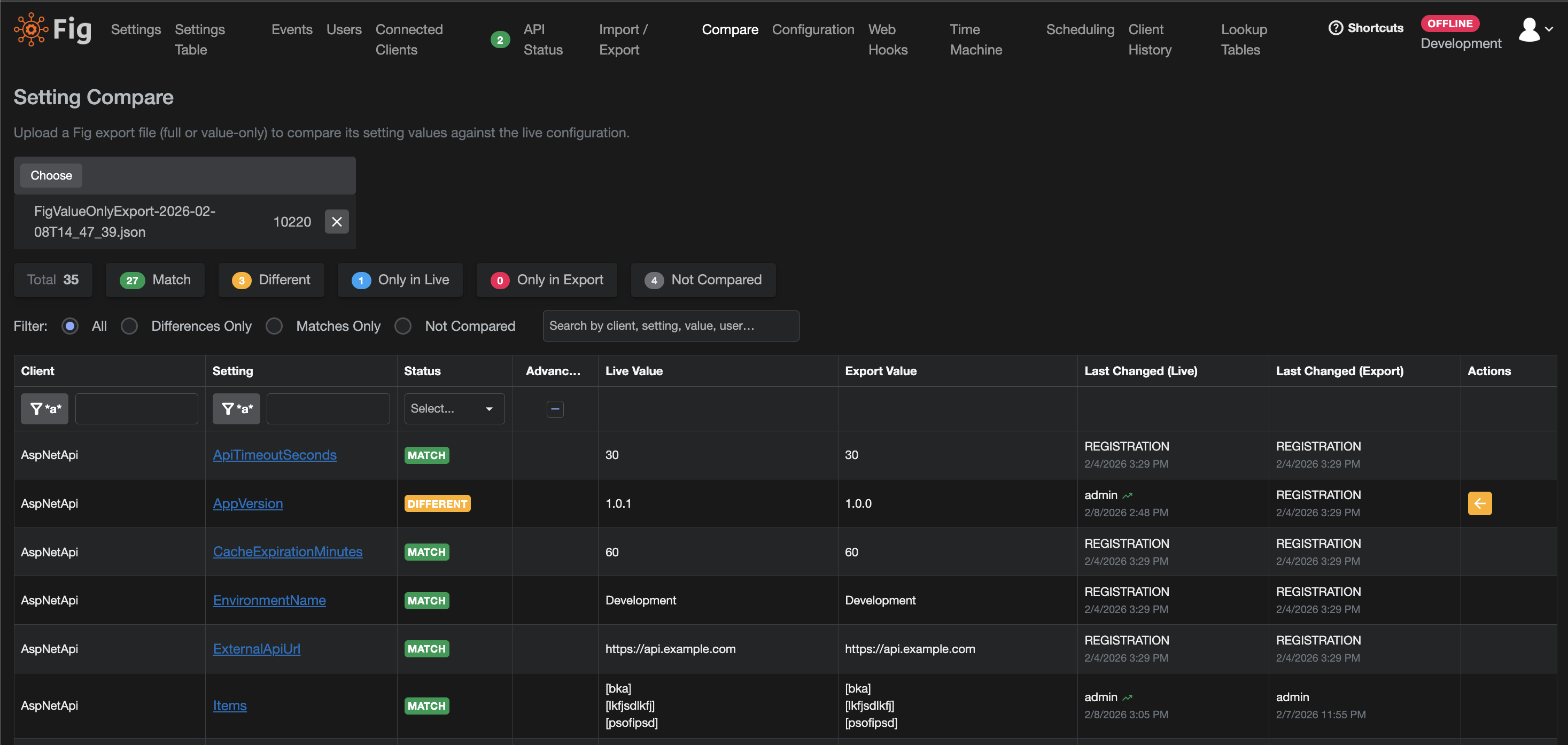
- Fig compares the export to the current live settings and presents a side-by-side view with status indicators.
The comparison experience is the same for full and value-only exports. If a value-only export is used, Fig still compares values and shows the same status breakdown, while advanced metadata is taken from the live settings when available.
Comparison statuses
Each row is assigned a status to highlight the relationship between the export and live settings:
- Match: The value is the same in both the export and live settings.
- Different: The value differs between the export and live settings.
- Only in Export: The setting exists in the export but not in live settings.
- Only in Live: The setting exists in live settings but not in the export.
- Not Compared: The setting is encrypted or secret and cannot be compared.
Last changed details
If you include last changed details during export, the compare view shows who last changed each setting, when it changed, and any associated change message. This is useful for audits and troubleshooting unexpected differences.
Tips and limitations
- Compare works across client instances, so instance-specific settings are evaluated in context.
- For encrypted or secret settings, Fig does not compare values and marks them as Not Compared.
- If you need to trace differences quickly, use filtering and sorting in the compare table to focus on a subset of settings.