Client Registration History
Fig tracks the registration history of all clients, capturing details each time a client registers with new or updated settings. This feature is valuable for administrators who need to understand how client configurations have evolved and identify when new settings were introduced that may require specific values.
How It Works
Every time a client application starts, it registers its settings with the Fig API. If the registration is new or the settings have changed since the last registration, Fig captures:
- The date and time of registration (UTC)
- The client name
- The client version
- All setting names and their default values
This information is stored permanently in the database and is available to administrators through the Fig web application.
Registration history is only captured for new or updated registrations. If a client registers with identical settings to its previous registration, no new history record is created.
Viewing Registration History
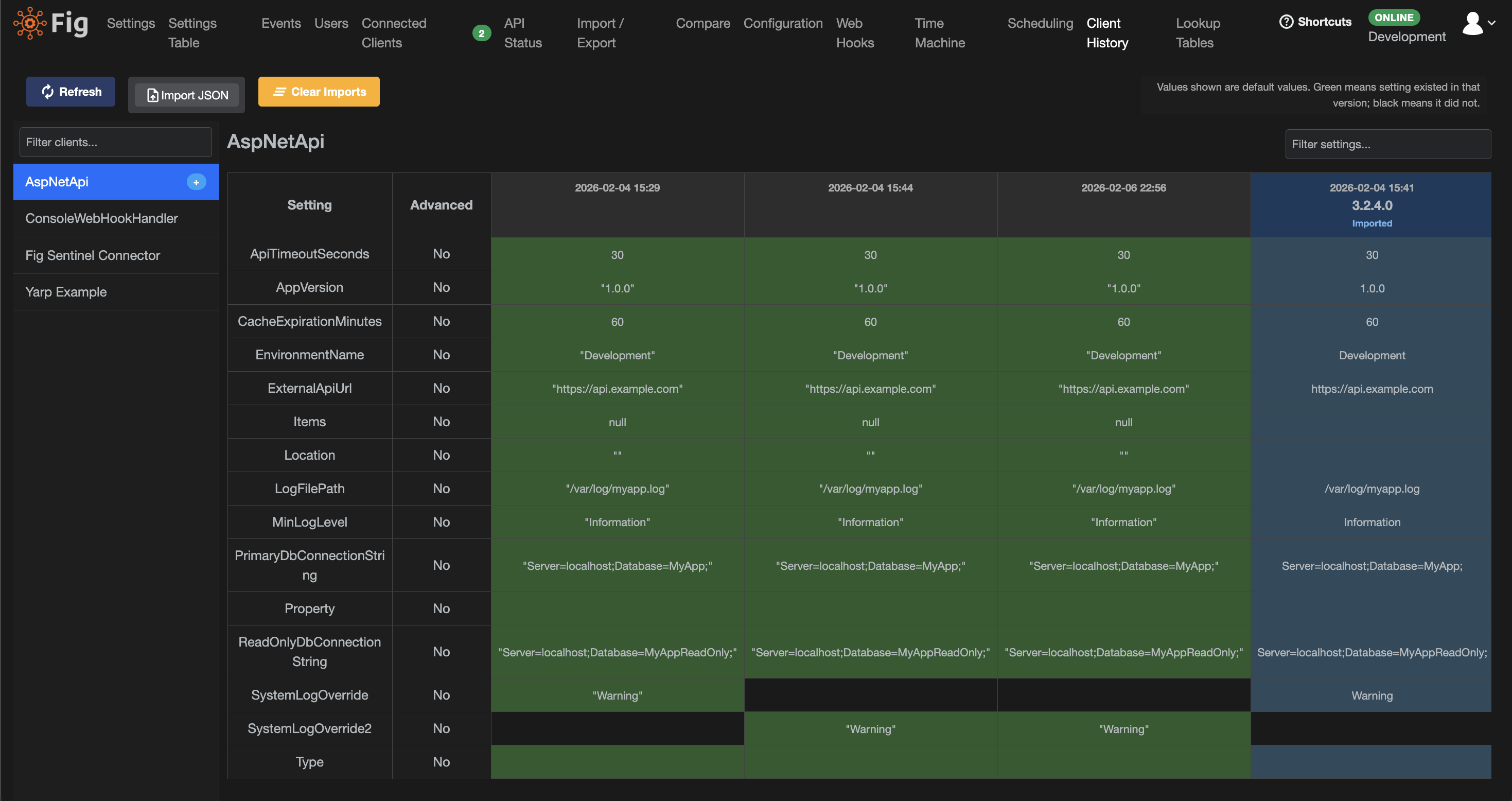
The Client History page is available to administrators from the main navigation menu. This page provides a comprehensive view of how client settings have evolved across versions.
Client List
The left panel displays all clients that have registration history. You can filter the list using the text filter at the top, which performs a case-insensitive search on client names.
Clients with imported definitions (see below) are marked with a badge indicator.
Matrix View
When you select a client, the main panel displays a matrix view showing:
- Columns: Each column represents a registration (version) of the client, ordered chronologically from left to right
- Header Row: Shows the registration date and client version for each column
- Setting Rows: Each row represents a setting that existed in any version
The cells are color-coded:
- Green background: The setting existed in that version
- No background: The setting did not exist in that version
- Cell content: Shows the default value if one was defined
This visualization makes it easy to:
- See when settings were introduced or removed between versions
- Track how default values have changed over time
- Identify settings that may need configuration in newer versions
Importing Unreleased Versions
A powerful feature of Client History is the ability to import setting definitions from unreleased versions of your applications. This allows you to compare upcoming changes against the current production configuration before deployment.
Generating the Export File
To generate a settings definition file from your application, run it with the --setting-definitions command line argument:
MyApplication.exe --setting-definitions
This will:
- Create a JSON file in the application directory
- The file name follows the format:
{ClientName}_{DateTime}.json - The application will exit immediately after generating the file
The generated JSON file contains:
{
  "clientName": "MyApplication",
  "clientVersion": "2.0.0",
  "generatedDateUtc": "2024-01-15T10:30:00Z",
  "settings": [
    {
      "name": "ConnectionString",
      "defaultValue": "Server=localhost",
      "advanced": false
    },
    {
      "name": "MaxRetries",
      "defaultValue": "3",
      "advanced": false
    }
  ]
}
Importing into Fig Web
- Navigate to the Client History page
- Click the "Import JSON" button
- Select one or more JSON files generated by your applications
- The imported definitions appear as additional columns in the matrix view with an "Imported" badge
Imported columns are displayed with a blue color scheme to distinguish them from registered versions.
You can import multiple files at once. Each file will be matched to its corresponding client based on the client name in the JSON.
Clearing Imports
Imported definitions are stored in memory only and will be lost if you refresh the page. You can also clear all imports manually by clicking the "Clear Imports" button.
Use Cases
Pre-deployment Review
Before deploying a new version of your application:
- Generate the settings definition file from the new build
- Import it into Fig
- Compare the new settings against the current production version
- Identify any new settings that need to be configured before deployment
Audit Trail
The registration history provides a complete audit trail of how your application's configuration requirements have evolved. This is useful for:
- Compliance and governance requirements
- Troubleshooting configuration-related issues
- Understanding the history of a particular setting
Multi-environment Coordination
When managing multiple environments, you can:
- Export settings from a staging environment
- Compare them against production
- Ensure all required settings are properly configured before promotion
API Access
The registration history is also available via the Fig API for integration with CI/CD pipelines or other automation tools.
Get All History
GET /clientregistrationhistory
Returns all registration history records. Requires administrator authentication.
Clear History
DELETE /clientregistrationhistory
Clears all registration history. This endpoint is primarily intended for integration testing. Requires administrator authentication.
Configuration
Registration history capture is automatic and requires no additional configuration. The feature is always enabled when using Fig.Client version 4.0 or later.
Registration history data is retained permanently and is not automatically purged. If storage becomes a concern, the clear endpoint can be used, though this will remove all history.