Custom Status Properties
Fig clients can send developer-defined operational properties with each status poll. Values are stored on the run session, shown on the Connected Clients page, and available via lightweight REST endpoints for integrations.
Unlike settings, these properties are not configuration — they are live status the application reports while running (timestamps, queue depth, region, latency, and similar scalars).
Defining properties
Define a class or record with the scalar properties you want to report:
using Fig.Client.Abstractions.StatusProperties;

public class OrderProcessorStatus
{
    [StatusProperty(DisplayName = "Last Sync", Highlight = true, Order = 1)]
    public DateTime? LastSuccessfulSyncUtc { get; set; }

    [StatusProperty(DisplayName = "Queue", Highlight = true, Order = 2)]
    public long QueueDepth { get; set; }

    [StatusProperty(DisplayName = "Usage", Highlight = true, Order = 3)]
    public string Usage { get; set; } = "NORMAL";

    [StatusProperty(DisplayName = "Avg latency")]
    public TimeSpan? AverageLatency { get; set; }

    public string Region { get; set; } = "unknown";

    [StatusProperty(ShowInUi = false)]
    public string? InternalCorrelationId { get; set; }
}
Register once with DI (typically next to your Fig setup):
builder.Services.AddFigStatusProperties<OrderProcessorStatus>();
builder.Host.UseFig<Settings>();
Update properties from your application code. Updating one property does not clear others; the full bag is sent on every poll:
public class SyncService(IFigStatusProperties<OrderProcessorStatus> status)
{
    public void OnSyncOk(long depth)
    {
        status.Set(x => x.LastSuccessfulSyncUtc, DateTime.UtcNow);
        status.Set(x => x.QueueDepth, depth);
        // or: status.Update(x => { x.Usage = "NORMAL"; x.QueueDepth = depth; });
    }

    public void OnUsageChanged(string level)
    {
        // Optional hex TextColor (#RGB or #RRGGBB) colours the value in Fig.Web.
        // Omitting textColor leaves any previous colour unchanged.
        // Clear colour with: status.SetTextColor(x => x.Usage, null);
        var color = level switch
        {
            "HIGH" => "#E53935",
            "LOW" => "#43A047",
            _ => "#FB8C00"
        };
        status.Set(x => x.Usage, level, color);
    }
}
[StatusProperty] options
| Option | Default | Purpose |
|---|---|---|
DisplayName | property name | Label in the UI |
Highlight | false | Show in the collapsed Connected Clients column |
ShowInUi | true | When false, omit from Fig.Web (still available via REST/MCP) |
Order | 0 | Sort order in the UI |
Highlight only a few properties so the collapsed column stays scannable. All highlighted properties are shown (there is no hard “first 3” cut).
Runtime text colour
TextColor is not set via the attribute. Pass it when updating a value:
Set(property, value, textColor)— sets the value; whentextColoris non-null it updates the colour; when omitted/null, the previous colour is left unchangedSetTextColor(property, textColor)— set or clear colour without changing the value (nullclears)Clear(property)— resets the value and clears its colour
Valid colours are #RGB or #RRGGBB (case-insensitive). Fig.Web applies the colour to the value text only (labels stay bold/default).
Supported types
Scalars only (including nullable equivalents):
string(also an escape hatch for ad-hoc JSON text if needed)bool- integer widths,
long/ulong(values must fit inlong) float/doubledecimal(sent as a string for precision)DateTime,DateTimeOffset,DateOnly,TimeOnlyTimeSpanGuid- enums (sent as the enum name)
Complex types, arrays, and dictionaries are skipped. Prefer a string property if you need a free-form blob.
Limits
To prevent abuse, Fig enforces:
- max 25 properties
- max 2048 characters per string value
- max 64 characters per property name
- max 4 KB serialized JSON
Oversized payloads are rejected by the API (400). The client omits an oversized snapshot from a poll and logs a warning rather than failing the poll loop.
Viewing in Fig.Web
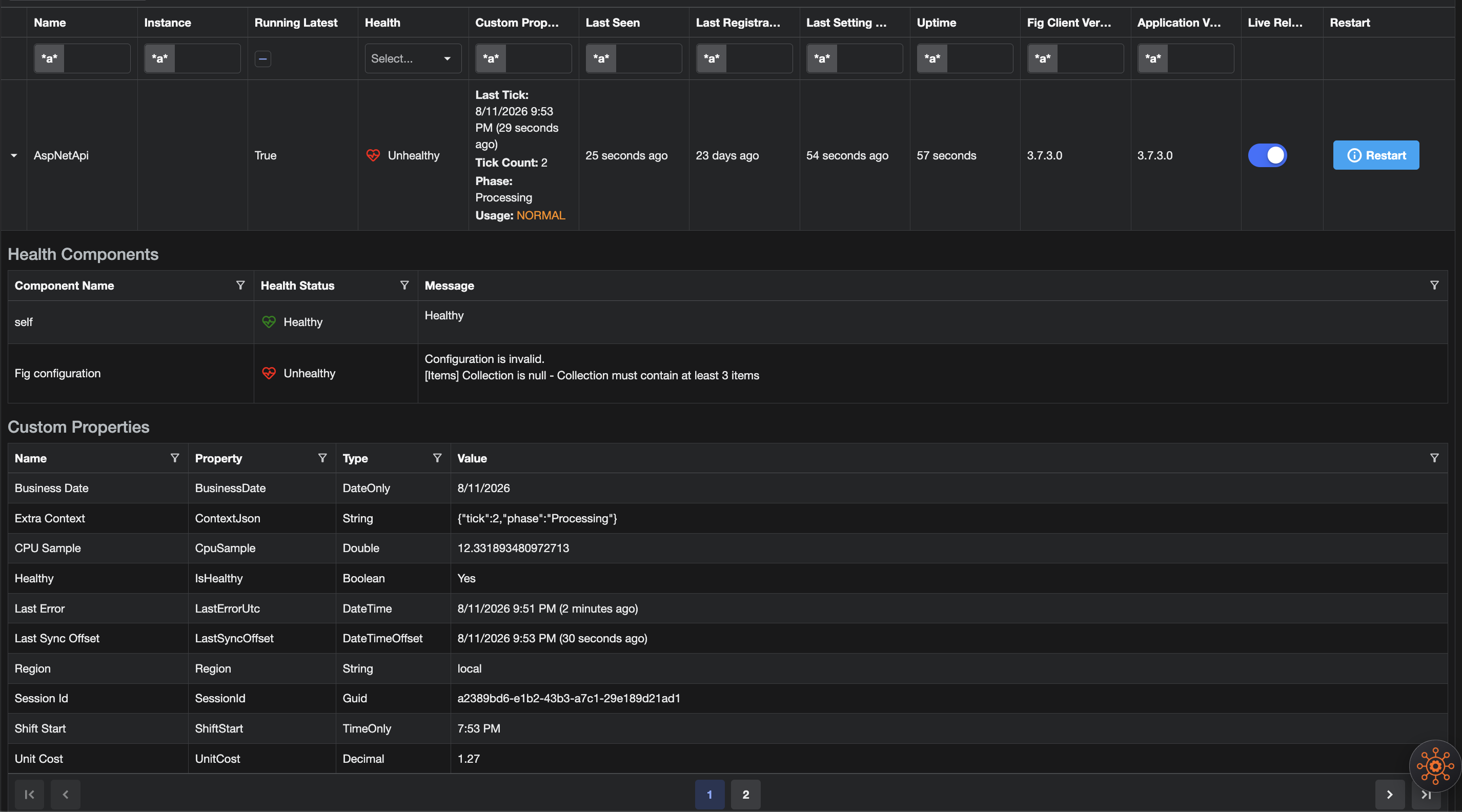
Custom properties are displayed both as a column in the table and in the expanded section
On Connected Clients:
- The Custom Properties column shows highlighted (
Highlight = true) properties, one per line, with bold labels. - Optional
TextColorhex values colour the value text (not the label). - Expanding a row lists all
ShowInUiproperties with type-aware formatting (and the same text colour on values). - Properties with
ShowInUi = falseare never shown in the UI or CSV export.
REST API
Custom properties are included on each run session from GET /statuses.
Lightweight endpoints (Admin / User / ReadOnly) return only identity + properties:
| Endpoint | Description |
|---|---|
GET /statuses/properties | All non-expired sessions |
GET /statuses/{clientName}/properties?instance= | Filter by client (and optional instance) |
These always return the full property bag, including API-only (ShowInUi = false) properties.