Groups
Overview
The Groups page provides a dedicated interface for managing setting groups in Fig. Groups allow you to link related settings from multiple clients so they can be organized and managed together. For example, if several microservices need the same database connection string, you can group those settings so the relationship is clearly visible and maintained in one place.
Groups are managed entirely from the web application — no code changes are required to create, modify, or delete groups after initial setup.
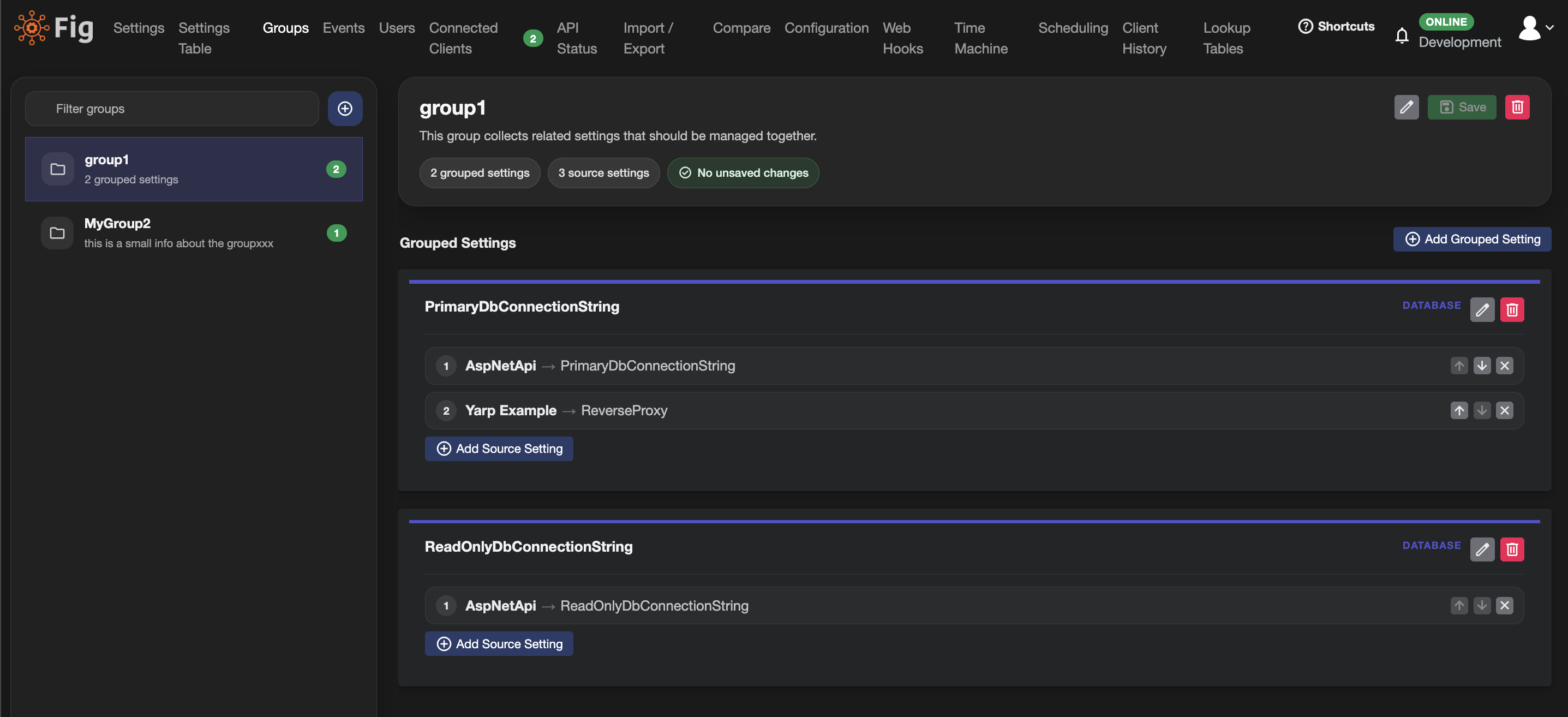
The groups page allows you to manage setting groups
Creating Groups
To create a new group:
- Navigate to the Groups page from the main menu.
- Click the + button in the top-right of the left panel.
- Enter a name for the group in the dialog that appears.
- Click OK to create the group.
The new group will appear in the left panel list, ready for you to add grouped settings and source settings.
Managing Groups
Editing a Group
Select a group from the left panel to view and edit its details:
- Name — The display name of the group. Editable inline by administrators.
- Description — An optional description explaining the purpose of the group.
Click Save to persist changes, or Delete to remove the group entirely. Deleting a group does not delete or modify the underlying settings — they simply become ungrouped.
Adding Grouped Settings
A grouped setting represents a logical configuration item within a group. For example, a group called "Database" might contain grouped settings like "Connection String" and "Database Name".
To add a grouped setting:
- Select a group from the left panel.
- Click Add Grouped Setting.
- Edit the name, description, and value type as needed.
Each grouped setting has a Value Type (e.g., System.String, System.Int32) that defines the data type of the underlying settings.
Adding Source Settings
Source settings are the actual client settings that a grouped setting links to. Each source setting is identified by a Client Name and Setting Name pair.
To add source settings:
- Click Add Source Setting on a grouped setting card.
- A dialog appears listing all available (ungrouped) settings from registered clients.
- Select one or more settings and confirm.
Settings that are already assigned to any group are automatically excluded from the selection list. Each source setting can belong to only one grouped setting at a time.
Removing Source Settings
Click the × button next to any source setting to remove it from the grouped setting. The underlying setting is not deleted — it simply becomes ungrouped.
Removing Grouped Settings
Click the delete icon on a grouped setting card to remove it and all its source setting associations from the group.
Automatic Group Creation
When a client registers with Fig for the first time, any settings decorated with the [Group] attribute are automatically added to groups:
[Setting("Database connection string")]
[Group("Database")]
public string ConnectionString { get; set; } = "Server=localhost;";

[Setting("Database name")]
[Group("Database")]
public string DatabaseName { get; set; } = "MyDb";
On first registration:
- If a group with the specified name does not exist, it is created automatically.
- If the group already exists, the setting is added to the appropriate grouped setting within it.
- Settings are grouped by their leaf name (the last segment of hierarchical setting names).
After initial auto-creation, groups are fully managed from the Groups page. The [Group] attribute is only used during the first registration of a client — subsequent registrations do not modify existing group membership.
Import and Export
Group configurations can be exported and imported from the Import / Export page.
Export
- Navigate to the Import / Export page.
- In the Group Export section, click Export.
- A JSON file (
FigGroupExport-<timestamp>.json) is downloaded containing all group definitions and their source setting mappings.
Group export includes group structure only (names, descriptions, grouped settings, and source setting references). It does not include actual setting values.
Import
- Navigate to the Import / Export page.
- In the Group Import section, upload a previously exported group JSON file.
- Select an import strategy:
- Clear and Import — Deletes all existing groups and imports the groups from the file.
- Add New — Only imports groups that do not already exist. Existing groups are left unchanged.
- Replace Existing — Updates existing groups by name and creates any new groups from the file.
- Click Import to apply.
Migration
When upgrading to a version of Fig that includes the Groups page, any existing groups created via [Group] attributes are automatically migrated to the new system. This migration:
- Reads all settings that have a
Groupvalue set. - Creates
SettingGrouprecords for each unique group name. - Links the appropriate source settings to their grouped settings.
- Skips groups that have already been migrated.
No manual action is required — existing group relationships are preserved.
Permissions
| Action | Administrator | User | Read Only |
|---|---|---|---|
| View groups | ✅ | ✅ | ✅ |
| Create groups | ✅ | ❌ | ❌ |
| Edit groups | ✅ | ❌ | ❌ |
| Delete groups | ✅ | ❌ | ❌ |
| Export groups | ✅ | ❌ | ❌ |
| Import groups | ✅ | ❌ | ❌ |
Filtering
The left panel includes a filter text box to quickly find groups by name. Type any part of the group name to narrow the list.
Audit Trail
All group operations (creation, updates, deletions, imports, and exports) are recorded in the Fig event log. Each event includes the username of the person who performed the action, or "System" for automatic operations such as migration and client registration.