Groups
Groups are now managed via the dedicated Groups page. You can create, edit, and delete groups and their source settings directly from the web application without any code changes. The [Group] attribute described below is used only for automatic group creation on first client registration.
Fig has the capability to group settings from multiple setting clients so they can be edited in one place. This is useful when multiple applications require the same configuration such as a database connection string. With the groups feature this can be set once and applied to all requesting clients simultaneously.
Usage
The [Group] attribute is used to define initial group membership when a client registers with Fig for the first time. After the initial registration, group membership is managed from the Groups page.
[Setting("Environment name")]
[Group("Environment")]
public string EnvironmentName { get; set; } = "Office";
Appearance
Grouped settings are visible under each individual setting client but they are not editable there. Instead they direct user to the group where they can be updated in a single location.

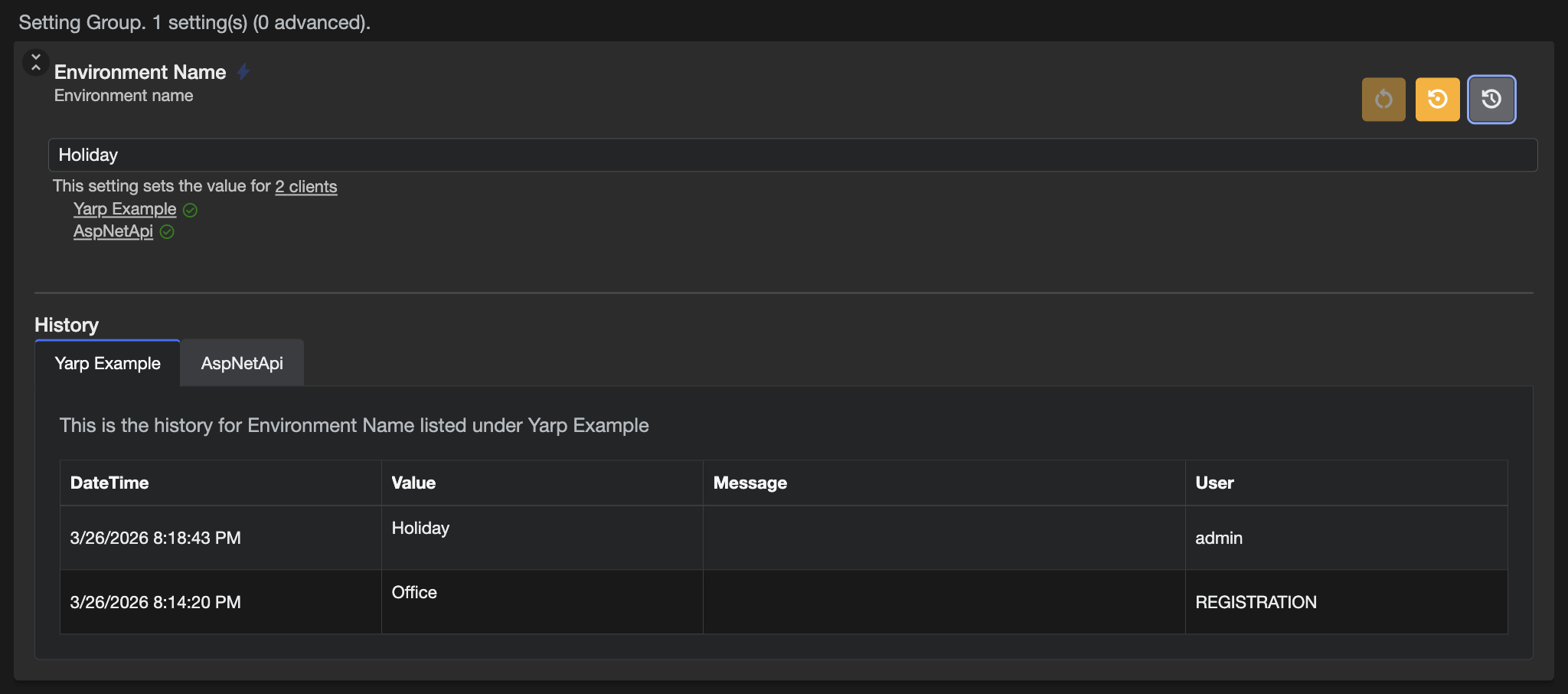
If the group is selected, it also indicates which setting clients are using the setting.

Settings can only be in a single group at a time but there is no limits to the number of settings that can be in a group or the number of clients using the same group.
When viewing the history within a group, each service has its own individual history shown in different tabs.
Ungrouping
There may be cases where settings have been grouped but need to be set individually to a different value from the group value. In this case, an instance can be created for that setting client. Instances are not grouped.
See Instances for more information.
Aligning Settings within a group
When multiple applications register a setting in the same group with different default values, the members of the group will have different values. The group will display one of these values.
Starting in Fig version 3.4, the groups will show if there are any misaligned members and allow users to align all group members to have the same value. This can also be done by updating the value of the group which will automatically be pushed down to all members.
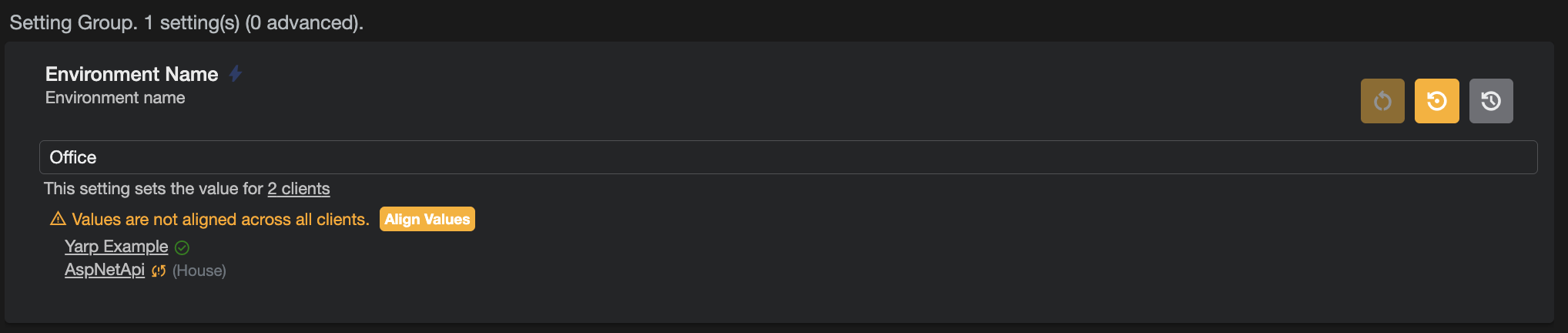
When group members are not aligned, it will be shown within the group

Once groups are aligned, it will be shown with green ticks within the group members
Overriding via Environment Variable
The group value can be overridden using an environment variable. It should be in the format FIG_SettingName_GROUP
Use a value of 'null' to clear the current value.
For example, if a setting Username was in a group "Auth" but you wanted to un-group it. You could do so by setting an environment variable FIG_USERNAME_GROUP=null